Invite your team
You can invite people to help you run a Business. A Business has one Owner. All other people on the team are Members.
- Owner: can do everything. Only the Owner manages the team and can archive the Business.
- Member: can do everything else: read and answer Feedback, change Scan Sources, print QR codes and change the Customer Experience Page.
Send an invite
- Open Settings and go to Team.
- Type the email address of the person.
- Choose the Locations that the person can use.
- Click Send invite.
Karma Clouds sends an email with a link. The link works one time, and it stops working after 7 days.
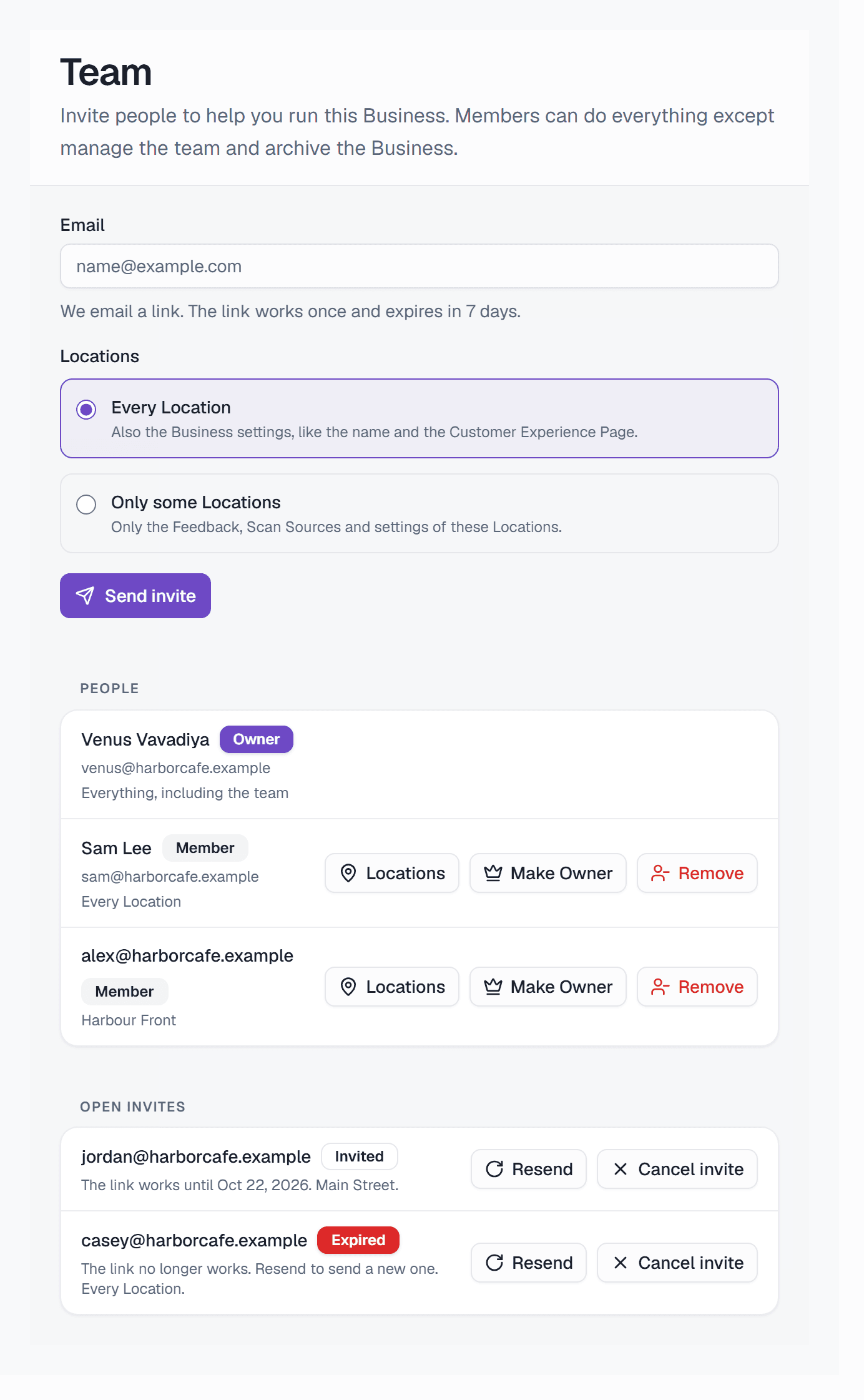
- 1Type the email of the person to invite.
- 2Choose every Location, or only some.
- 3Send the invite.
- 4Change the Locations of a Member.
- 5Offer the Business to a Member.
- 6Remove a Member.
- 7Send the invite again, with a new link.
When you resend an invite, Karma Clouds sends a new link with a new 7 days. The old link stops working. To stop an invite, click Cancel invite.
Only some Locations
When a Business has two or more Locations, you can give a Member only some Locations. Select Only some Locations, then select each Location.
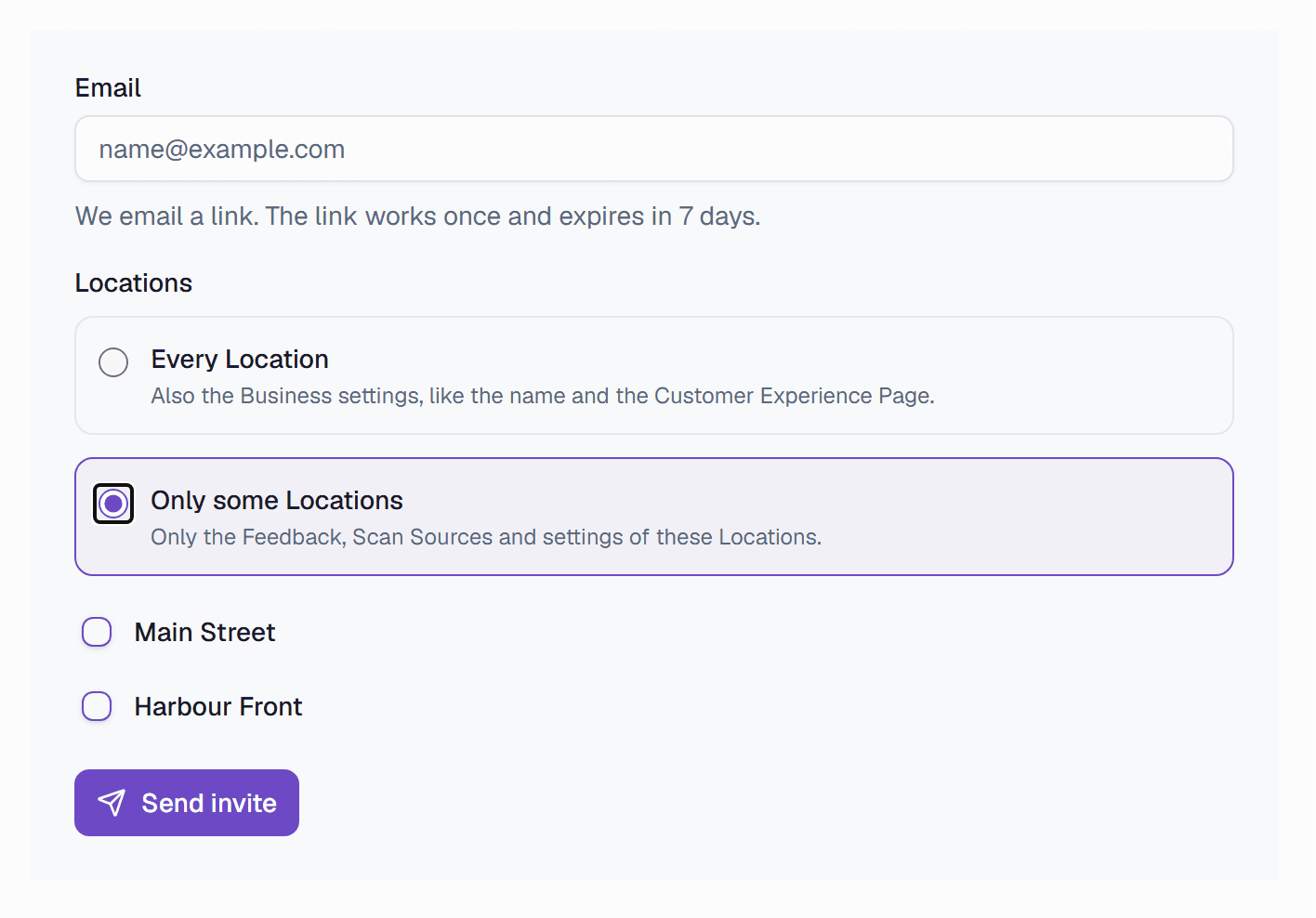
- 1Give the Member only some Locations.
- 2Select each Location that the Member can use.
A Member with only some Locations sees and changes only the Feedback, the Scan Sources and the settings of those Locations. This Member cannot change the settings of the whole Business, cannot add or archive a Location, and cannot see Subscribers.
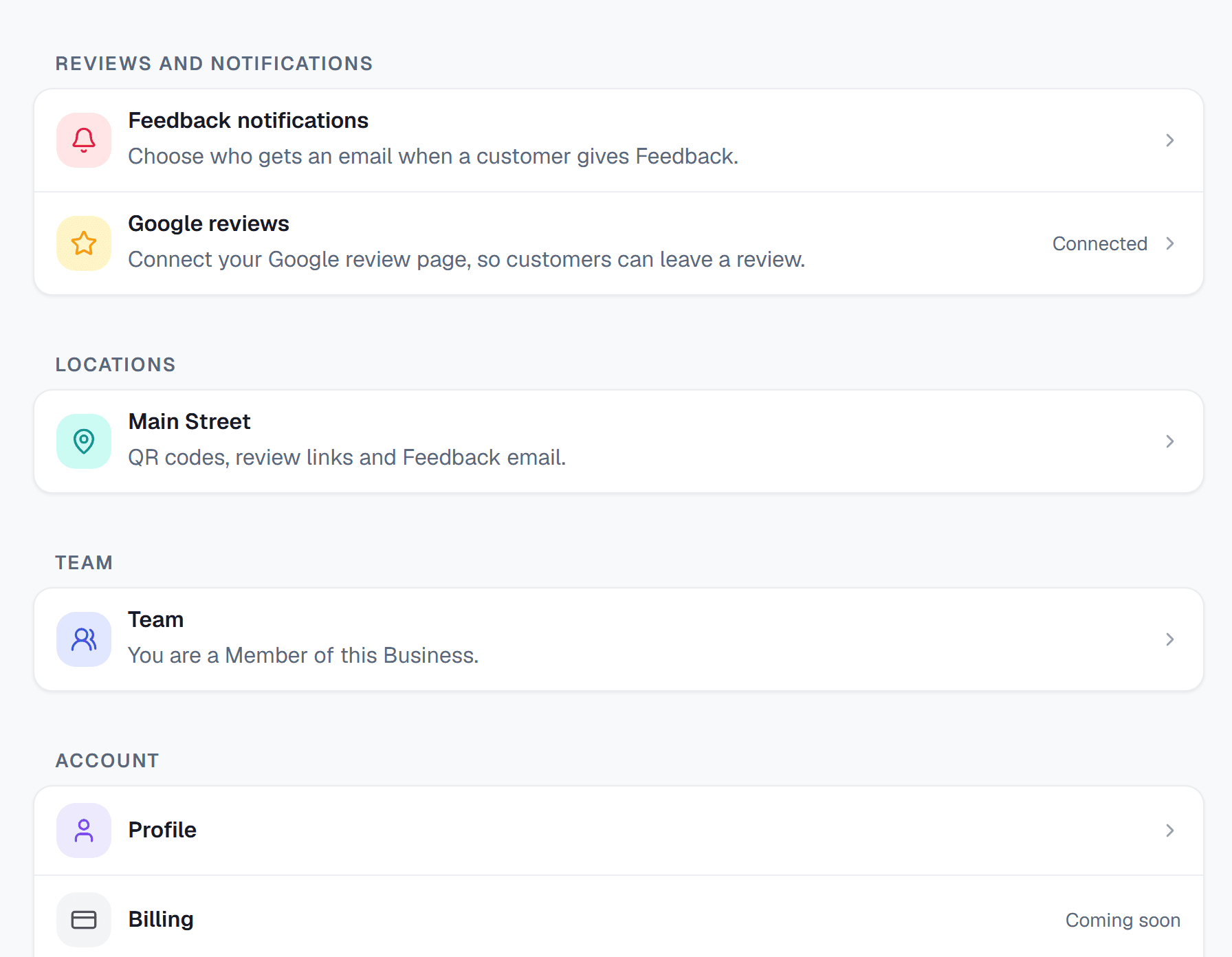
- 1The Member chooses their own Feedback notifications.
- 2The Team row tells the Member their role.
Remove a Member
On the Team page, click Remove next to the Member. The Member cannot open the Business after this. A Member can also leave a Business: on the Team page, the Member clicks Leave this Business.
Who can see the team
Only the Owner sees the invite form and manages the team. A Member sees the Team page with their own role and the button to leave.