Choose your Feedback emails
Karma Clouds sends an email when a customer gives Feedback. Each person on the team chooses to get these emails or not. Your choice changes only your emails.
Turn your emails on or off
- Open Settings and go to Reviews and notifications > Feedback notifications.
- Tap Email me when a customer gives Feedback. The choice saves when you tap it.
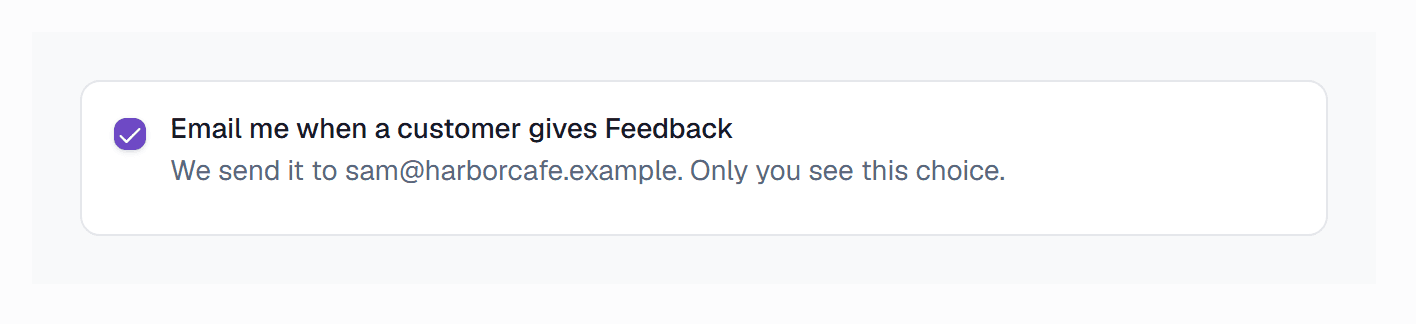
- 1Tap to turn your Feedback emails on or off.
A new Member gets Feedback emails. A Member with only some Locations gets emails only for those Locations.
Who gets each email
- Each person on the team who turned on their emails.
- The Business alert email, for example a shared inbox. The Owner, or a Member with every Location, sets it on the same page.
- The Feedback email of the Location, when the Location has one.
Each address gets one email for each Feedback, also when it is on two lists.